
Google Search Console Guide: A Complete Beginner's Guide for 2026
If your website exists but isn't showing up on Google — or you have no idea how it's actually performing in search — Google Search Console is the first tool you need to open. It's free, it comes straight from Google, and it tells you things no third-party SEO tool can replicate, because the data comes directly from the source.
This Google Search Console guide walks you through everything a beginner needs: what GSC is, how to set it up, the reports that matter most, and how to use it to actually fix problems — not just look at numbers.
What Is Google Search Console?
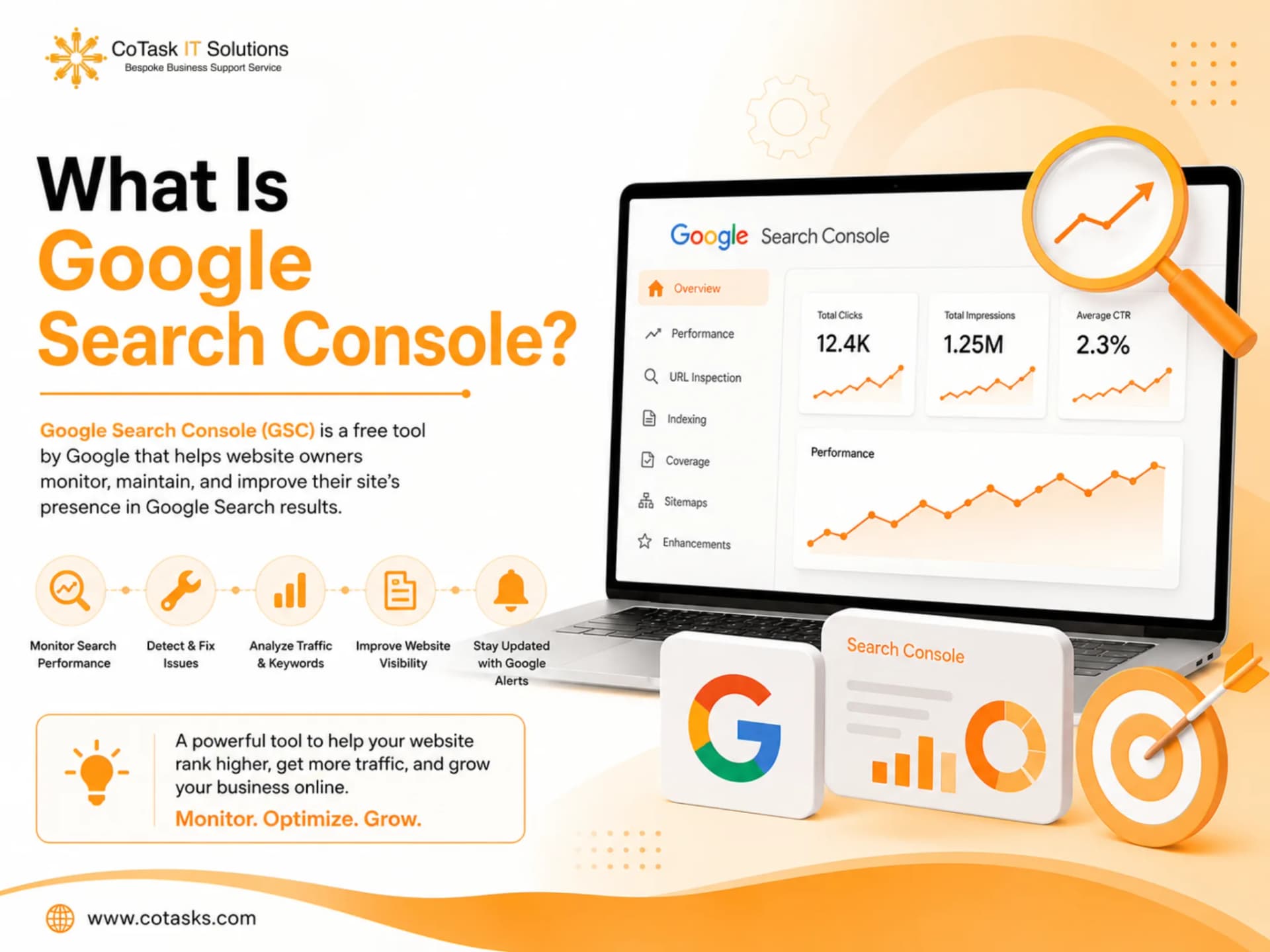
Google Search Console (GSC), formerly known as Google Webmaster Tools, is a free platform that lets you monitor, maintain, and troubleshoot how your website appears in Google Search. It shows you how Google crawls your site, which pages are indexed, how your content performs across search results, and where technical issues are holding you back.
In 2026, GSC's role has expanded well beyond traditional blue-link rankings. It now reports on how your site performs across AI Mode and AI Overviews as well, alongside classic metrics like clicks, impressions, and average position. That makes it just as relevant for AEO (answer engine optimization) and GEO (generative engine optimization) as it is for traditional SEO — if AI-driven search systems can't crawl or trust your content, Search Console is usually where the warning signs show up first.
In short: if you want to know what Google actually thinks of your site, Search Console is where you go to find out. Industry reporting notes that GSC now reports on visibility across traditional search, AI Mode, and AI Overviews together, not just the classic results page — which is exactly why it's become a core part of how we approach technical SEO audits for clients.
Why Google Search Console Matters for Beginners
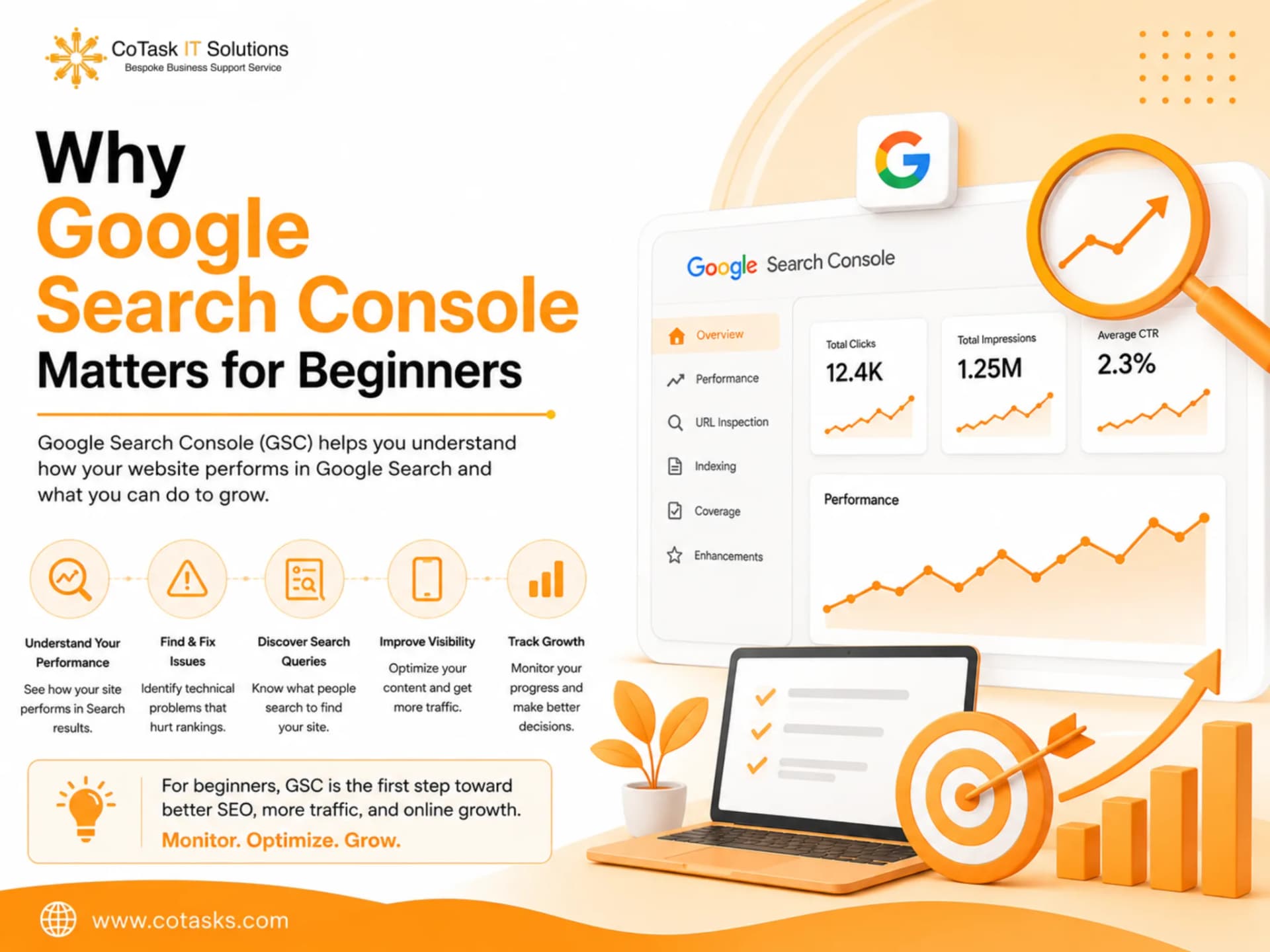
A lot of beginners skip GSC because it looks technical. That's a mistake. Here's what it actually helps you do:
- See real search data — the exact queries people use to find your site, not estimates from a third-party tool
- Catch indexing problems early — pages that Google can't find, can't crawl, or has chosen not to index
- Fix technical SEO issues — broken structured data, mobile usability errors, security problems
- Track Core Web Vitals — the page experience signals that affect both rankings and user experience
- Understand your backlink profile — which sites link to you, and which of your pages earn the most links
Without this data, you're guessing. With it, you know exactly where to focus.
Setting Up Google Search Console
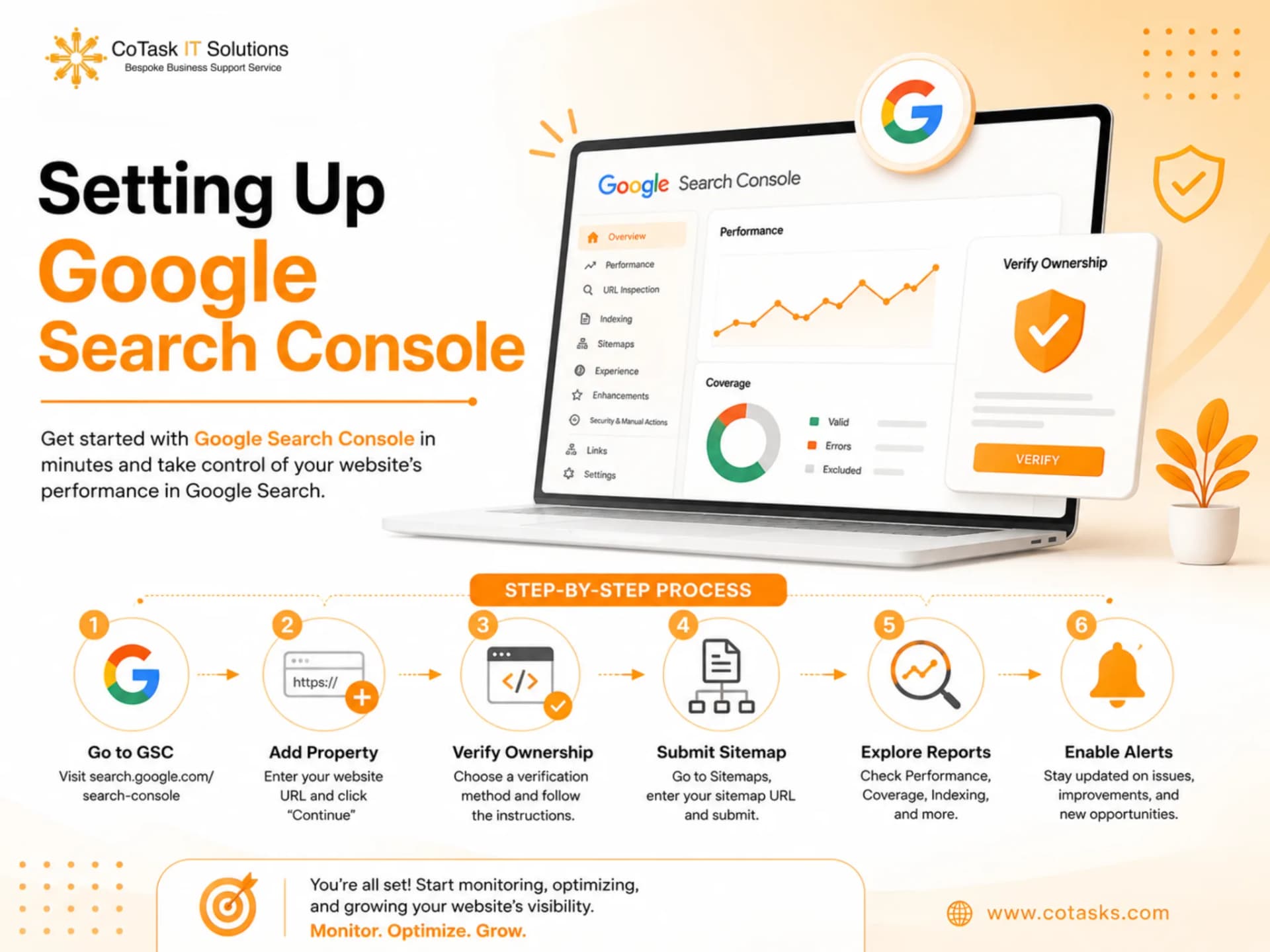
Step 1: Verify Your Property
Go to search.google.com/search-console and add your site as a property. You'll be offered two options:
- Domain property — covers all subdomains and protocols (http, https, www, non-www). This is the recommended option because it gives you the most complete picture.
- URL-prefix property — covers only the exact URL prefix you enter (e.g., only https://www.yoursite.com).
Domain properties require DNS verification through your domain registrar. URL-prefix properties offer more verification options: HTML file upload, HTML tag, Google Analytics, or Google Tag Manager.
Setup guidance from industry 2026 GSC guides recommends starting with a domain property for primary analysis, and adding URL-prefix properties only when isolated tracking is needed for specific subdomains or protocols. One catch worth knowing upfront: linking GSC to GA4 still requires a URL-prefix property for your main domain (e.g., https://www.yoursite.com), since that's currently the only property type GA4 connects to directly — so most sites end up running both a domain property and a URL-prefix property side by side.
Step 2: Submit Your Sitemap
Once verified, go to the Sitemaps report and submit your XML sitemap (usually found at yoursite.com/sitemap.xml). This helps Google discover your pages faster and more systematically than relying on crawling alone.
Step 3: Link Google Analytics (Recommended)
Connecting GA4 to Search Console gives you a fuller picture — search data alongside on-site behavior like bounce rate, session duration, and conversions.
The Key Reports Every Beginner Should Know
1. Performance Report
This is where most SEO work actually happens. The Performance report shows clicks, impressions, average CTR, and average position, broken down by query, page, country, device, and search type (web, image, video, Discover). It's also where you'd separate branded queries (people already searching for your brand name) from non-branded queries (people discovering you for the first time) — branded terms typically convert well but non-branded terms show whether you're genuinely growing reach.
Use this report to find:
- Queries where you rank on page 2 (positions 11-20) that could be pushed to page 1 with content updates
- Pages with high impressions but low CTR — a sign your title tag or meta description needs work
- Seasonal or declining trends before they become bigger problems
A detail beginners tend to miss: AI Mode and AI Overviews traffic is now folded into the Performance report under the "Web" search type, rather than broken out separately — so a chunk of your impressions may already be coming from AI-driven surfaces without an obvious label.
2. URL Inspection Tool
This is arguably the most-used tool in GSC for day-to-day work. Paste in any URL and it tells you:
- Whether the page is indexed
- When it was last crawled
- Whether there are mobile usability or structured data issues
- The option to request indexing after you've made changes
Requesting indexing doesn't guarantee immediate results, but it often speeds up reprocessing after a content update or technical fix.
3. Page Indexing (Coverage) Report
This report shows which URLs are indexed and, critically, which are excluded — and why. Common exclusion statuses beginners run into:
- Discovered — currently not indexed: Google knows the page exists but hasn't crawled it yet, often due to crawl budget or weak internal linking.
- Crawled — currently not indexed: Google crawled the page and chose not to index it — usually a content quality or duplication issue, not a technical one.
- Excluded by 'noindex' tag: intentional or accidental — worth double-checking.
If a page isn't indexed, it can't show up in search results — full stop. This report is where you catch that before it costs you traffic.
If you've submitted a sitemap, comparing indexed URLs against the total submitted is one of the fastest ways to spot a gap worth investigating.
4. Core Web Vitals / Page Experience
Combines loading performance (Largest Contentful Paint), interactivity, and visual stability (Cumulative Layout Shift) into a single view of how Google evaluates your site's user experience. Paired with mobile usability and HTTPS status, this section tells you whether your site's technical foundation is helping or hurting your rankings.
5. Enhancements Report
Shows structured data status for things like breadcrumbs, FAQ markup, product data, and other rich result features. If you've added schema markup to your site, this is where you confirm Google is actually reading it correctly.
6. Links Report
Shows both external links (who links to you, and which pages get the most backlinks) and internal links (how your own pages connect). Use this to spot orphan pages — pages with no internal links pointing to them, which makes them hard for Google to discover — and to identify strong pages that could pass link equity to other important pages through better internal linking.
7. Security & Manual Actions
Flags serious problems: hacked content, malware, deceptive pages, or manual penalties from Google's spam team. If anything shows up here, it needs immediate attention — these issues can tank your visibility entirely.
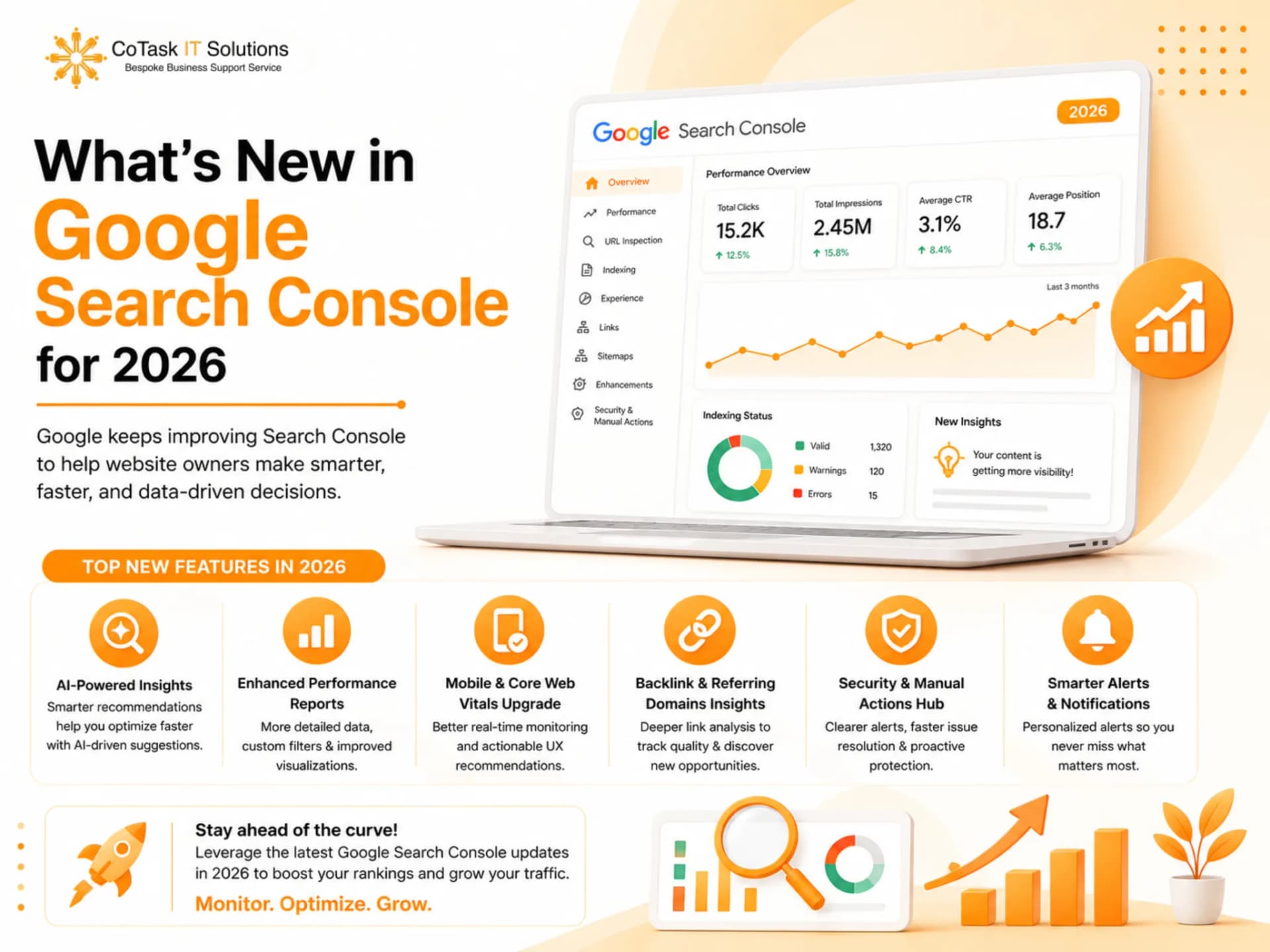
What's New in Google Search Console for 2026
A few updates are worth knowing as a beginner, since they change how the tool is used day to day:
- Custom annotations in Performance reports let you add short notes directly to your traffic charts — useful for tying a spike or drop to a specific action, like a content update or site migration.
- Social channel data is being tested inside the Insights report, giving a more unified view of how your website and social profiles perform together.
- Branded vs. non-branded query filtering makes it easier to separate people who already know your brand from people discovering you for the first time.
- AI-driven reporting on AI Overviews and AI Mode is expanding, reflecting how much of search now happens outside the traditional blue-link results.
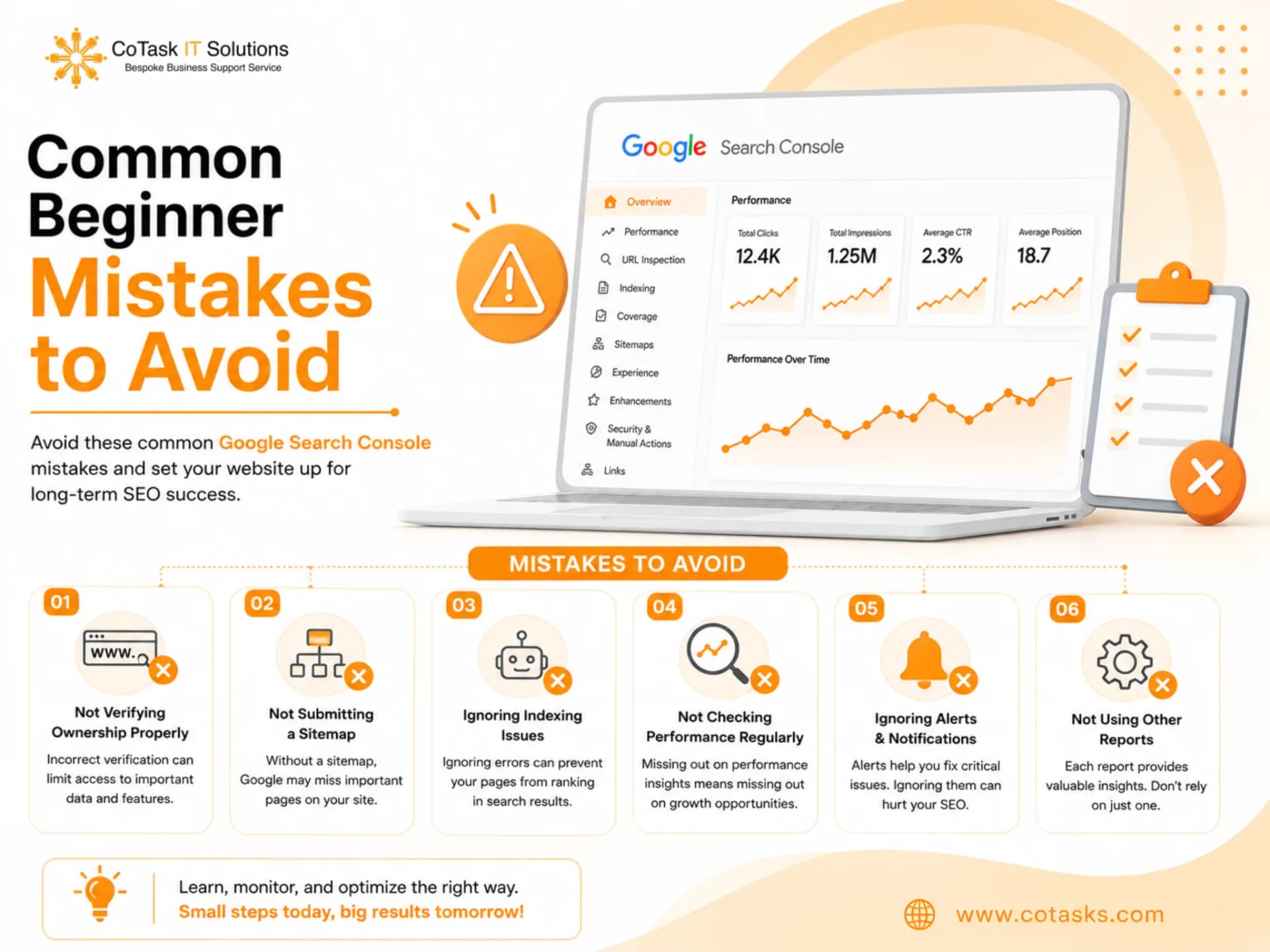
Common Beginner Mistakes to Avoid
- Ignoring the Coverage/Indexing report — most beginners only check Performance and never notice pages that aren't indexed at all.
- Skipping mobile usability checks — with most search traffic on mobile, usability errors directly affect rankings.
- Not linking GA4 — GSC alone shows search behavior; GA4 shows what happens after the click. You need both.
- Overusing "Request Indexing" — there's a daily limit, so save it for pages with real, significant updates.
- Treating GSC as a one-time setup — it's a monitoring tool. Check Performance and Coverage regularly, not just when something breaks.
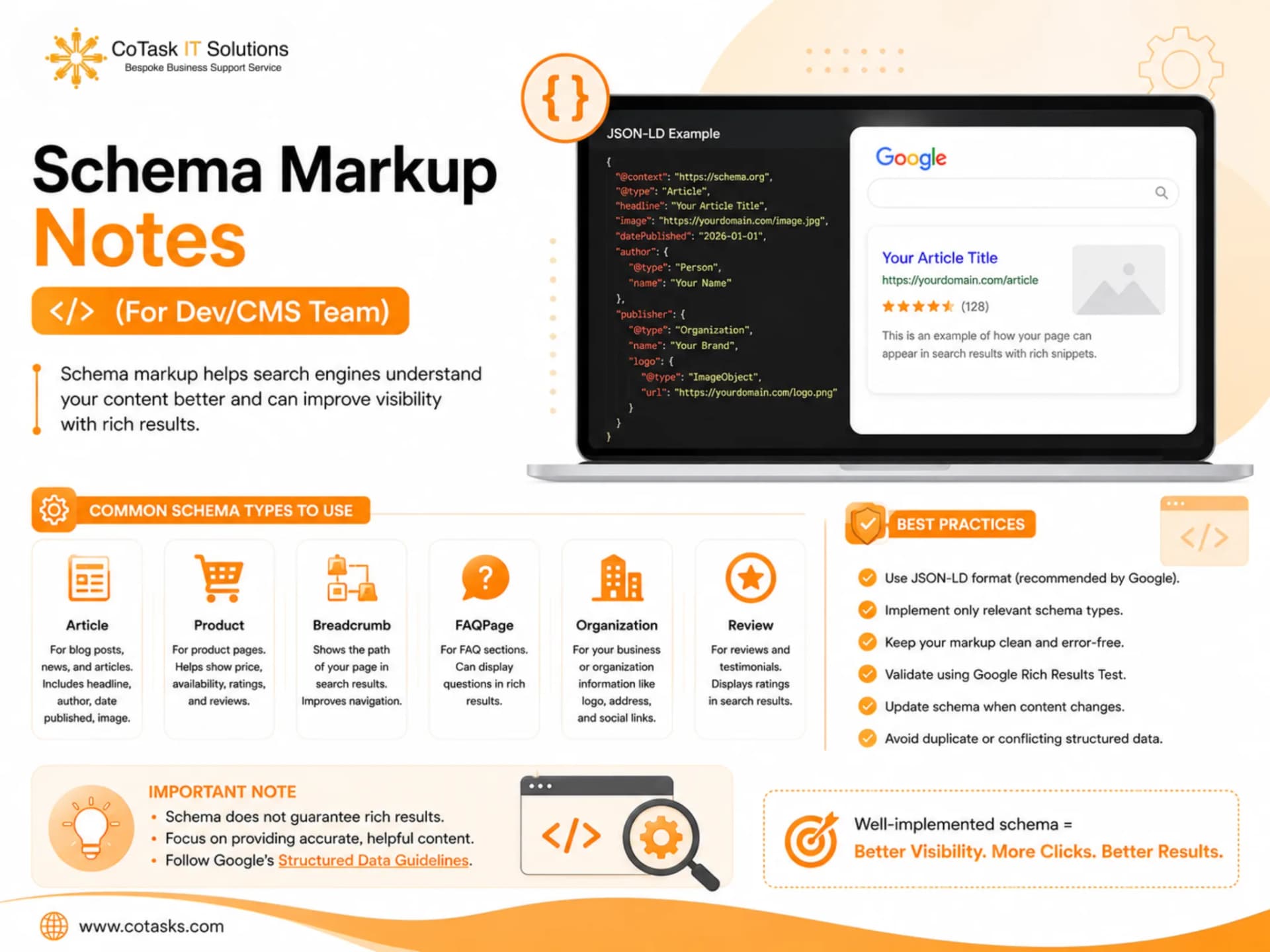
Schema Markup Notes (For Dev/CMS Team)
- Implement Article schema on this post (headline, author, datePublished, dateModified, image).
- Implement FAQPage schema wrapping the Frequently Asked Questions section below — five Q&A pairs, matched exactly to the visible text.
- Add BreadcrumbList schema reflecting the URL path (Home > Blog > SEO > Google Search Console Guide).
- Confirm Organization schema is present sitewide so E-E-A-T signals (author, publisher) are picked up alongside this post.
Frequently Asked Questions
Final Thoughts
Google Search Console isn't optional in 2026 — it's the closest thing to a direct line into how Google sees your website. Set it up properly, check the Performance and Indexing reports regularly, fix Core Web Vitals issues as they come up, and use the Links report to strengthen your internal linking. Master these fundamentals first before chasing advanced tactics — they're what everything else in your SEO strategy depends on.
Not sure what your Search Console data is actually telling you? Cotasks' SEO team offers a free Search Console audit — we'll walk through your indexing, Core Web Vitals, and Performance data and hand you a prioritized action list.
Visit Us: https://cotasks.com/